
Overlays in OBS
A Streamly overlay shows up in OBS through a Browser Source that points to a local URL served by the app.
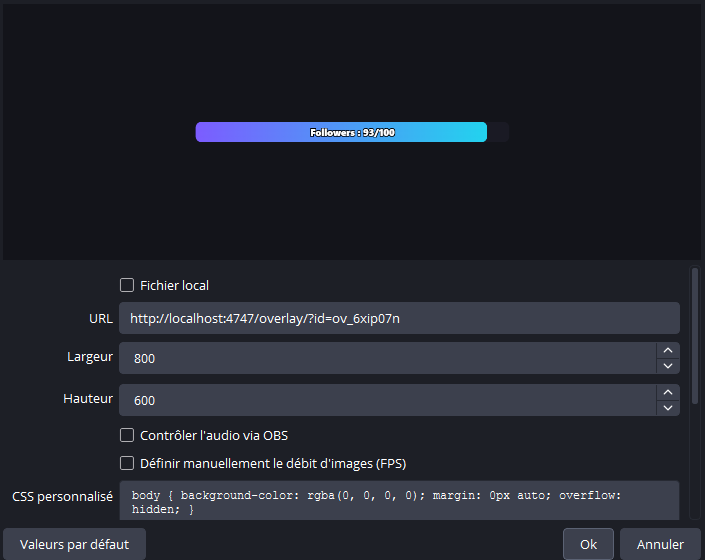
Step by step
Section titled “Step by step”- In Streamly, open the Overlays tab, select your overlay and copy its URL.
- In OBS, under Sources, click + → Browser Source.
- Name the source, then paste the overlay URL.
- Set the width and height to match the overlay (often your scene resolution, e.g. 1920×1080, or a size dedicated to the widget).
- Confirm. The overlay appears on a transparent background — it layers cleanly over your scene.
- Keep Streamly open during your live: it’s what serves the overlays (via the local service on port 4747).
- An overlay won’t refresh? In OBS, right-click the source → Refresh cache of current page.