
Connect YouTube
For YouTube, you create OAuth credentials in the Google Cloud console (free, one time). Google recently grouped this setup under “Google Auth Platform”, organized into Branding, Audience and Clients tabs.
1. Prepare the project
Section titled “1. Prepare the project”- Go to the Google Cloud console and create (or pick) a project.
- Enable the YouTube Data API v3 for that project.
2. Configure OAuth access (Google Auth Platform)
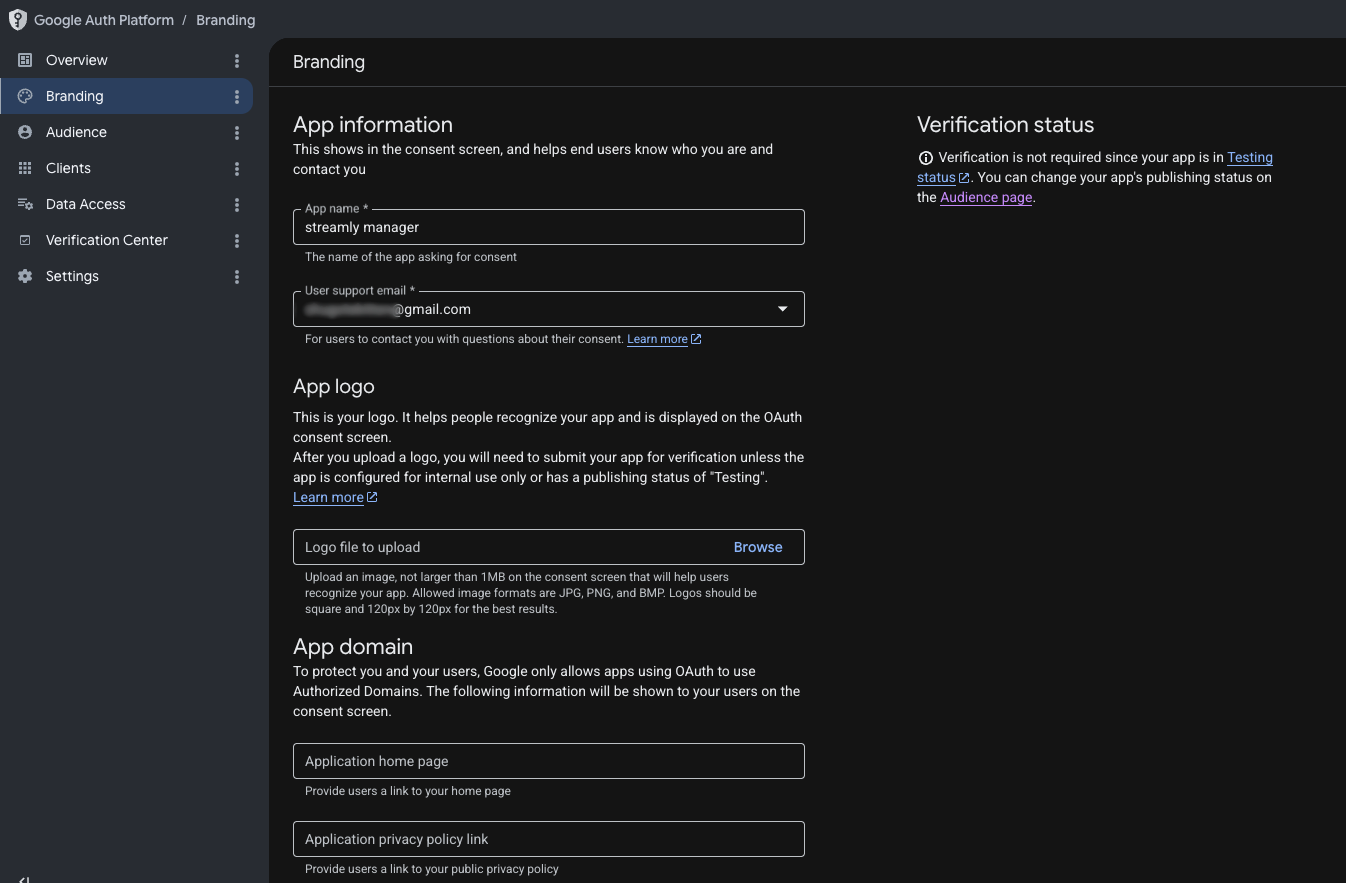
Section titled “2. Configure OAuth access (Google Auth Platform)”Branding — fill in the application name and the support email.
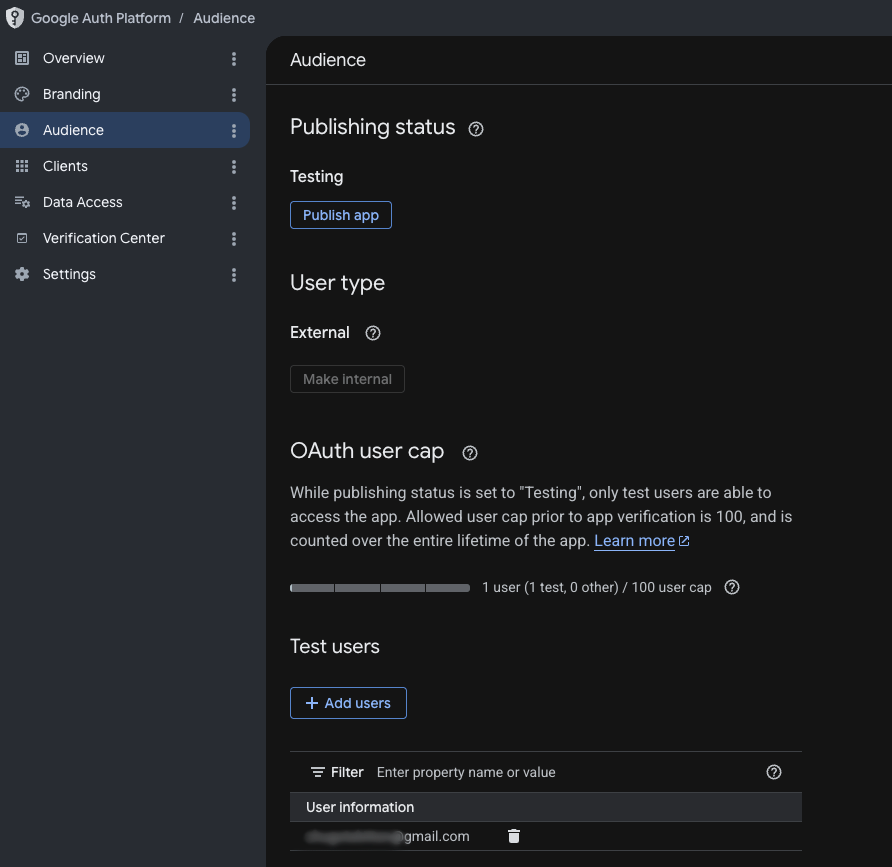
Audience — choose the External type, then add your Google account as a test user. As long as the app isn’t verified by Google, only test users can use it — which is plenty for your personal use.
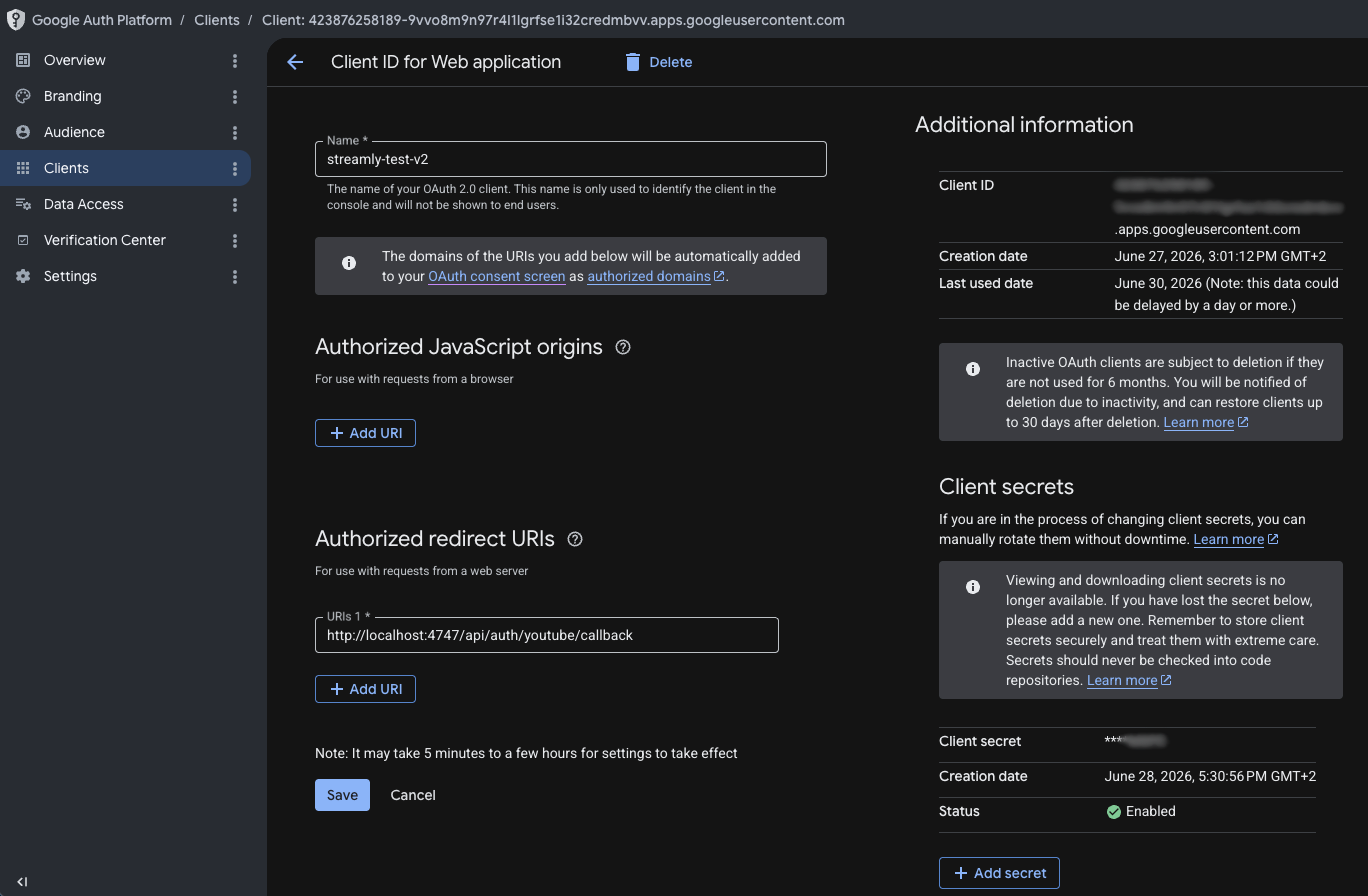
Clients — create an OAuth client:
- Application type: Web application.
- Add the authorized redirect URI:
http://localhost:4747/api/auth/youtube/callback - Grab the Client ID and the Client Secret.
3. Paste into Streamly
Section titled “3. Paste into Streamly”In Connections → YouTube, paste the Client ID and the Client Secret (stored encrypted locally), then connect and approve access.
Requested permission
Section titled “Requested permission”Streamly requests the youtube.force-ssl permission — it covers reading the live chat and sending messages, as well as editing the title/description.
⚠️ Good to know about YouTube
Section titled “⚠️ Good to know about YouTube”- Some actions (editing the title/description, reading live info, moderating) require an active or scheduled live. Without a stream in progress or planned, Streamly can’t find a “broadcast” to modify.
- The “game title” can’t be changed via the API (YouTube Studio only); the category (broad: Gaming, etc.), however, can be.
See the Stream control page and Limitations.
After any change to permissions: golden rule (disconnect/reconnect).