
Connect Twitch
Reading Twitch chat requires nothing. To send messages, receive events (subs, follows, channel points…), moderate and control your stream, you create a small free Twitch app — once, ~2 minutes.
1. Create the Twitch app
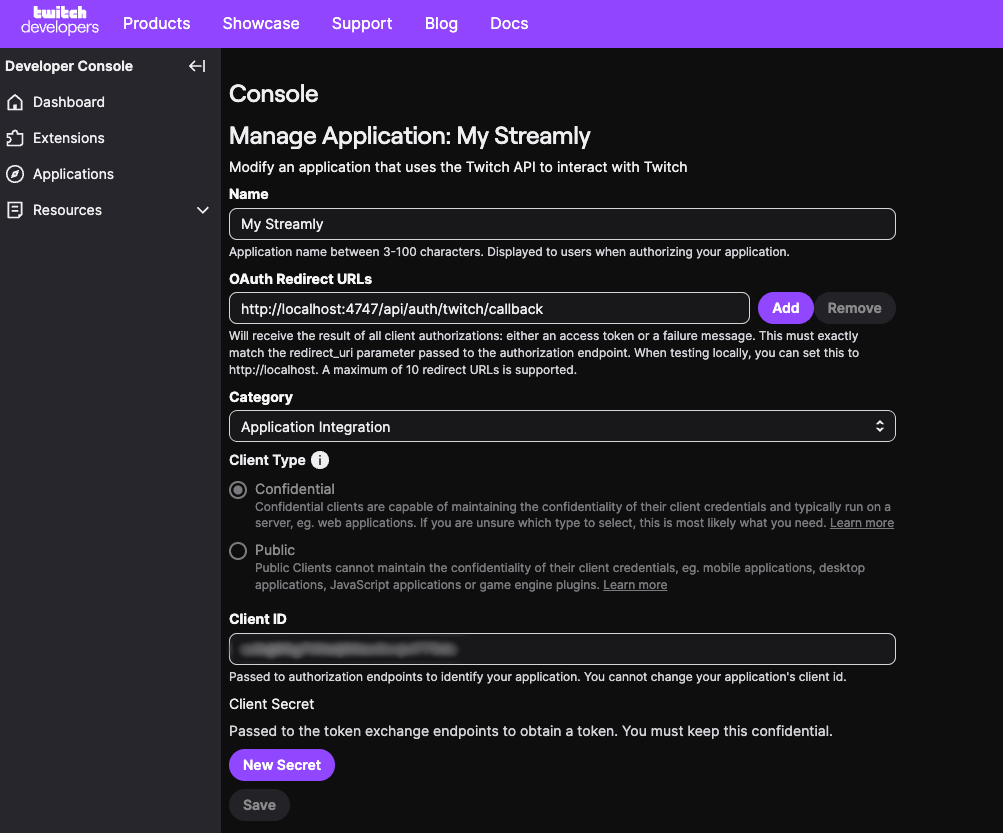
Section titled “1. Create the Twitch app”- Go to dev.twitch.tv/console/apps/create (sign in with your Twitch account).
- Fill in:
- Name: whatever you like (e.g. “Streamly — my handle”).
- OAuth Redirect URL: paste exactly
http://localhost:4747/api/auth/twitch/callback - Category: Application Integration.
- Client Type: Confidential.
- Create the app, then grab the Client ID and generate a Client Secret (New Secret).
2. Paste the credentials into Streamly
Section titled “2. Paste the credentials into Streamly”In Connections → Twitch, paste the Client ID and the Client Secret. They’re stored encrypted locally and are only ever sent to Twitch.
3. Connect
Section titled “3. Connect”Click Sign in with Twitch, approve access on the Twitch page. The token is saved and refreshes on its own.
Requested permissions
Section titled “Requested permissions”At connection, Streamly asks for what it needs to: read and send chat, read channel points, followers, subscriptions, bits, the hype train, moderate (delete / timeout / ban), and control the stream (title / category / tags).
Good to know
Section titled “Good to know”- Twitch’s “go-live notification” can’t be changed via the API (only adjustable on Twitch). See Limitations.
After any change to permissions, remember the golden rule: disconnect then reconnect.