
Installation
Download the latest version from the download page.
| System | File |
|---|---|
| Windows | .exe (NSIS installer) |
| macOS | .dmg (Apple Silicon and Intel) |
| Linux | .AppImage or .deb |
Windows
Section titled “Windows”- Run the downloaded
.exe. - Windows SmartScreen may show a warning (“Windows protected your PC”). This is normal for now: click “More info” then “Run anyway”.
- Follow the installer, then open Streamly.
- Open the
.dmgand drag Streamly into Applications. - On first launch, macOS may say that “the app is damaged” or comes from an unidentified developer. This is because it isn’t notarized yet — the app is not damaged.
- Gatekeeper workaround: right-click the app → Open, then confirm. (If it’s still blocked, open System Settings → Privacy & Security and allow Streamly.)
- AppImage: make the file executable, then run it.
- .deb: install it with your package manager (double-click or
sudo dpkg -i).
Updates
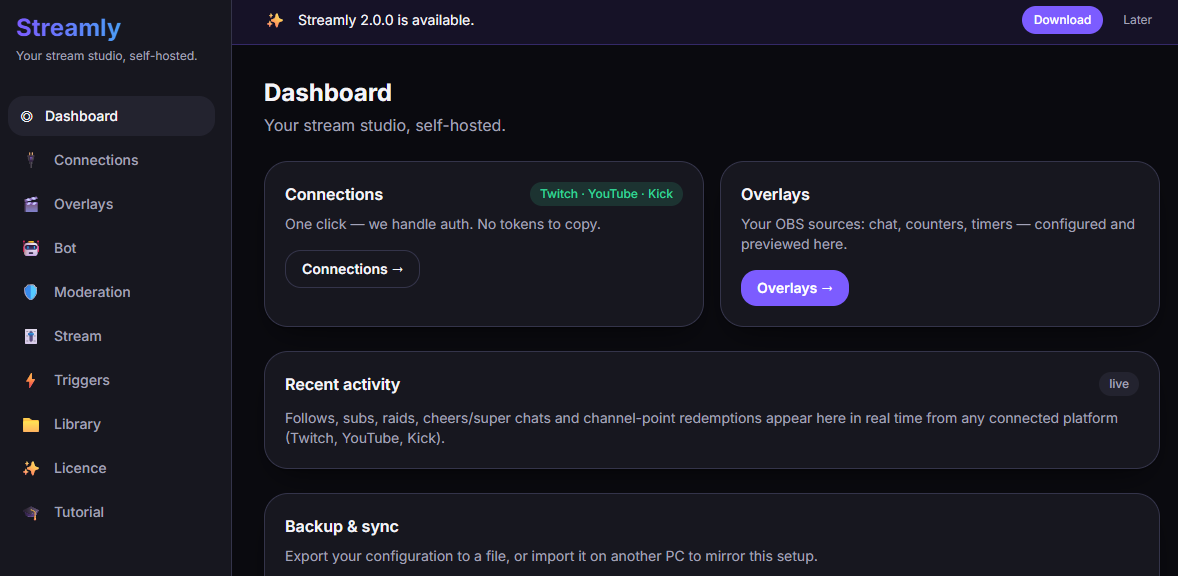
Section titled “Updates”On launch, Streamly quietly checks whether a newer version exists and shows a banner if so (with a “Download” button). Nothing installs automatically for now: you download the new version from the download page. See also Settings.
Next step: Getting started.